OneStep
Scroll to step outside Skip intro

For the hard days, one small step at a time.

OneStep is a small support app for daily check-ins, a safety plan in your own words, and calm tools for difficult moments.

The waitlist opens soon

Coming to iPhone first. The app is in English at launch.

What is OneStep?

A support app for everyday check-ins and difficult moments.

In about a minute, note how today feels. Then, if you like, choose one small, manageable thing or a short exercise. What helps can stay close: in your Care Kit, and in a Safety Plan written in your own words.

You choose what to use and when. Nothing needs finishing, and skipping is fine.

About a minute, four short questions. You can change an answer later the same day, and Home shows your day back to you.

OneStep isn't a diagnosis, therapy or a monitored emergency service. No one watches your answers, and it never contacts anyone for you.

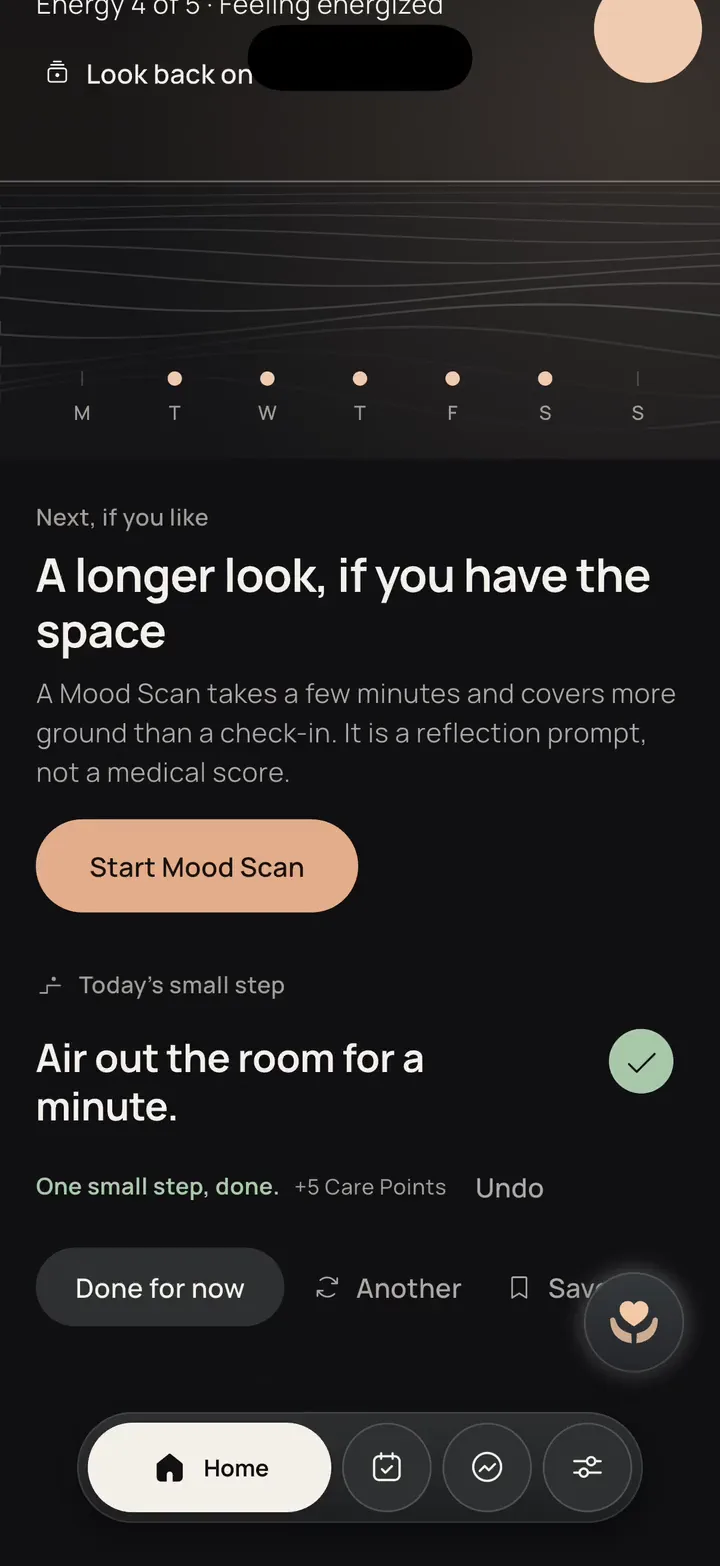
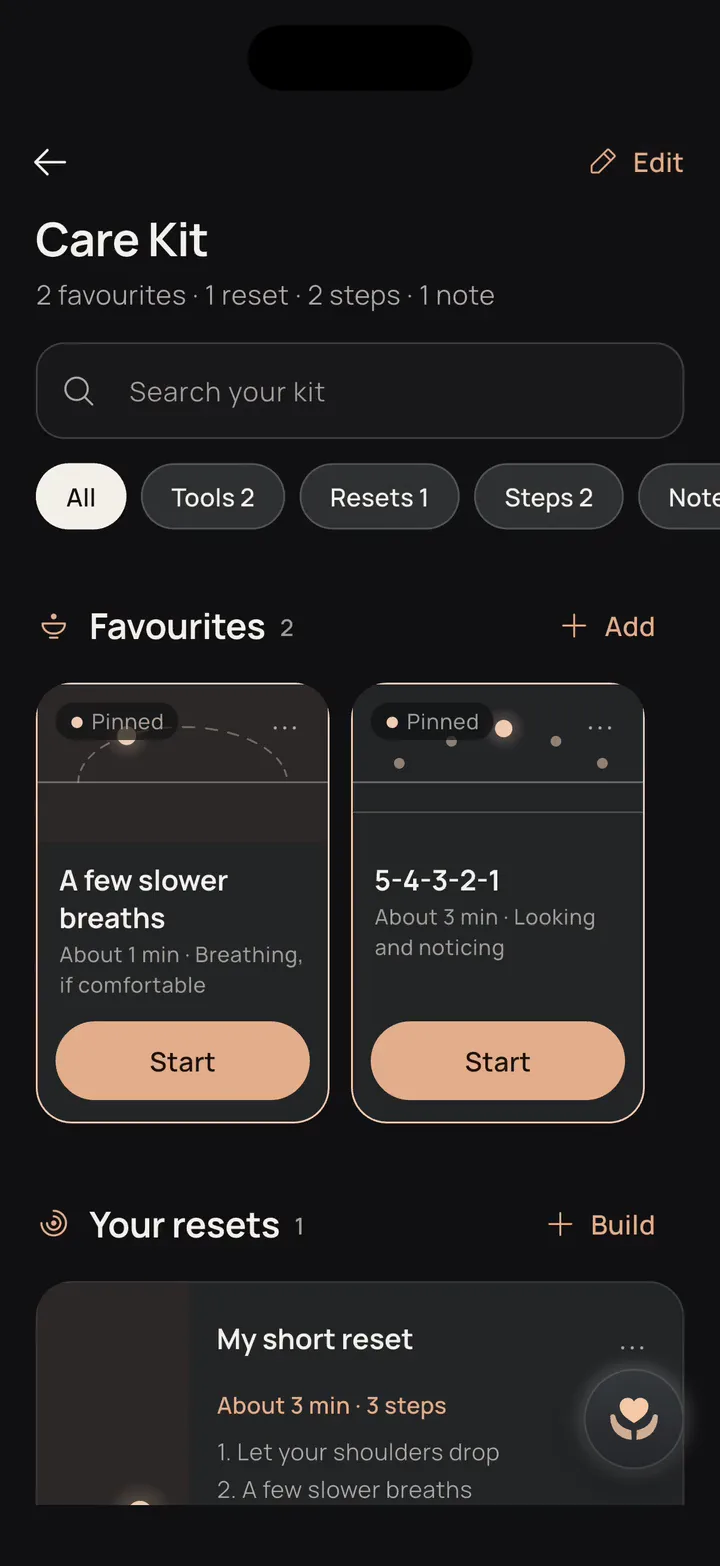
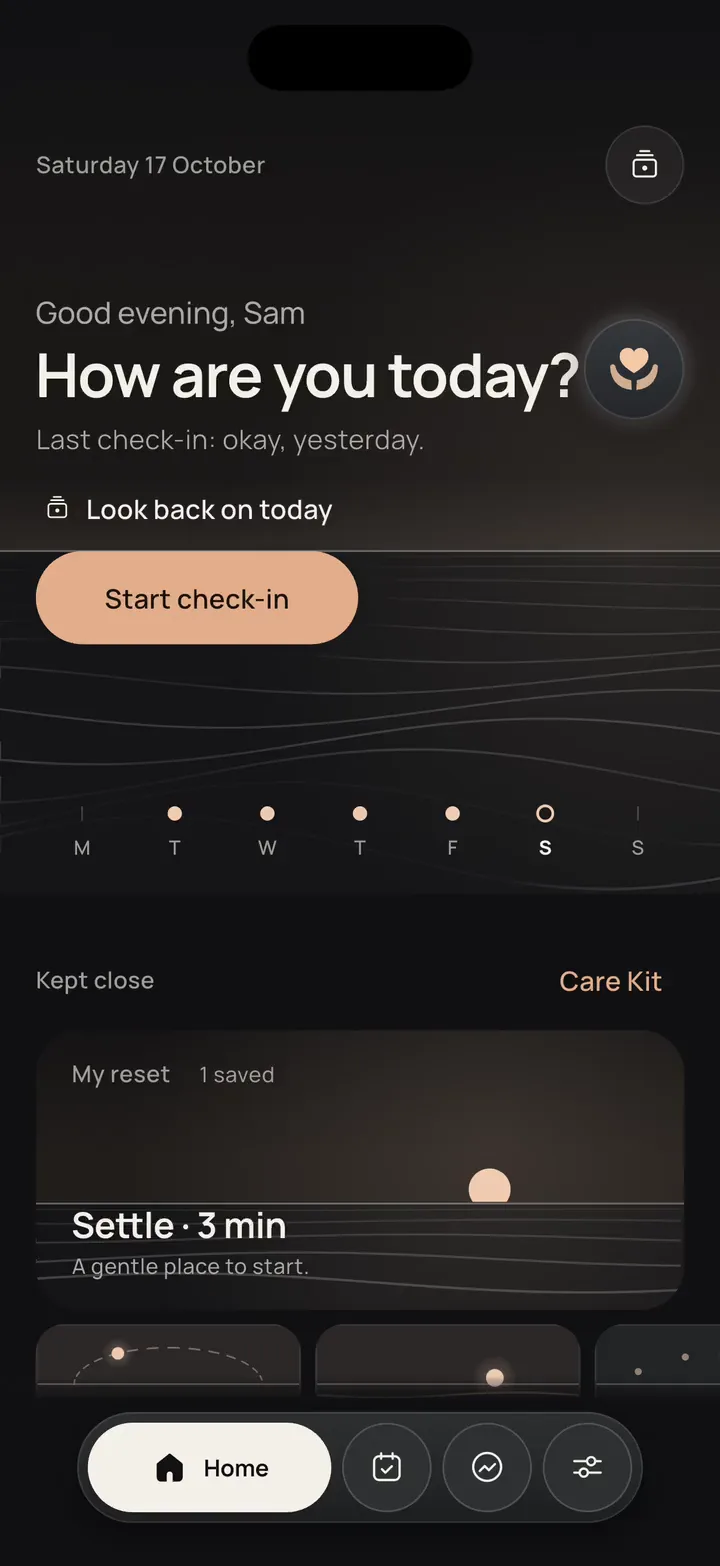
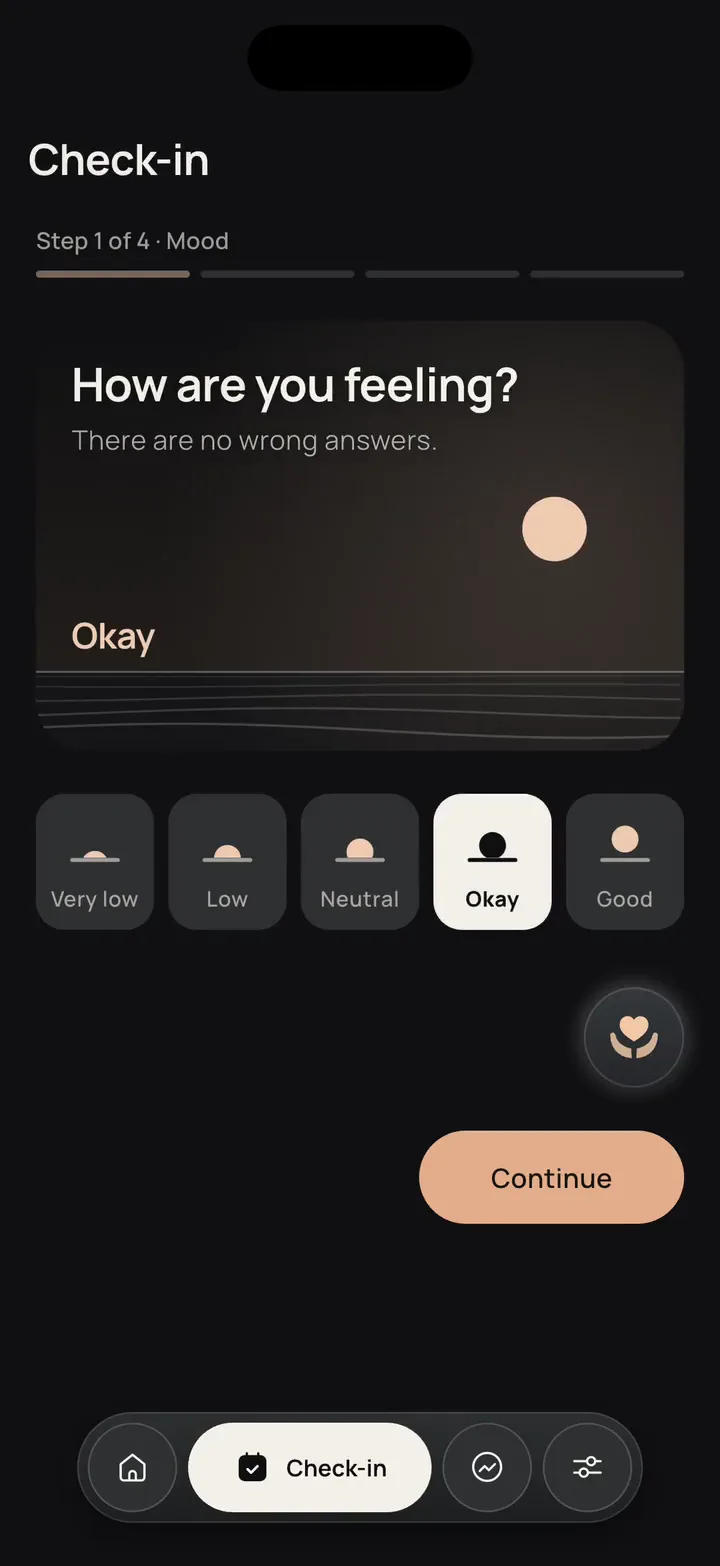
OneStep's check-in: How are you feeling?, with Okay chosen. Today's small step on Home, ticked done, with Done for now and Another beneath it. Care Kit: pinned exercises, a saved reset and saved steps, with Edit at the top.
Recorded from a pre-release build, with sample data.

How it works

Four places, one path through the day.

Most days you only need the first. The others are there for when a day turns.

Choose a place on the path to see its screen.

1 / 4 Every day

Check in

See your day plainly, in about a minute.

Four short questions: how you feel, your energy, an optional note and whether you feel safe. Home then shows the day back, with one small step.

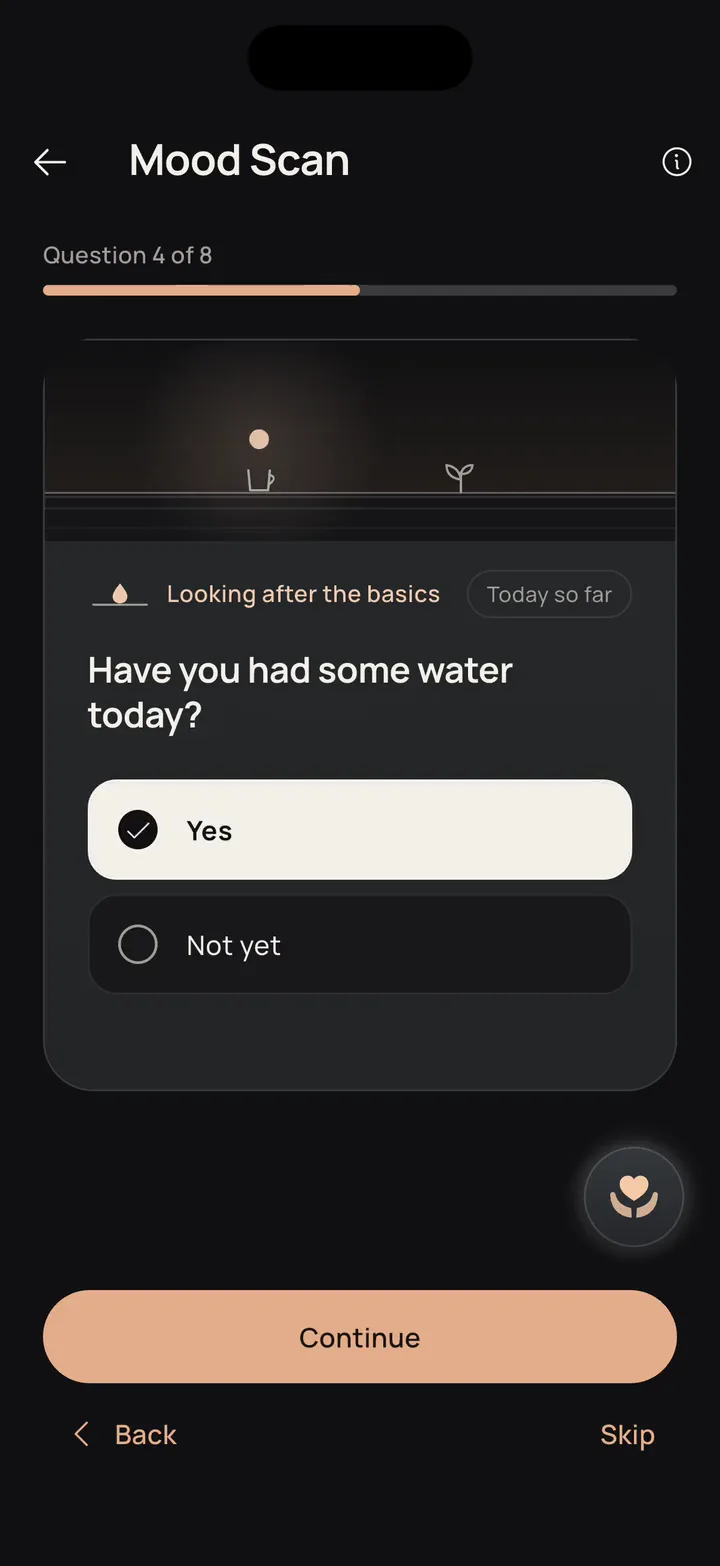
Not the Mood Scan: that's a separate, longer reflection of eight questions, for when you have the space.

Continue toCheck-in

2 / 4 When it gets harder

One tap to Support

Help is one tap away on any main screen.

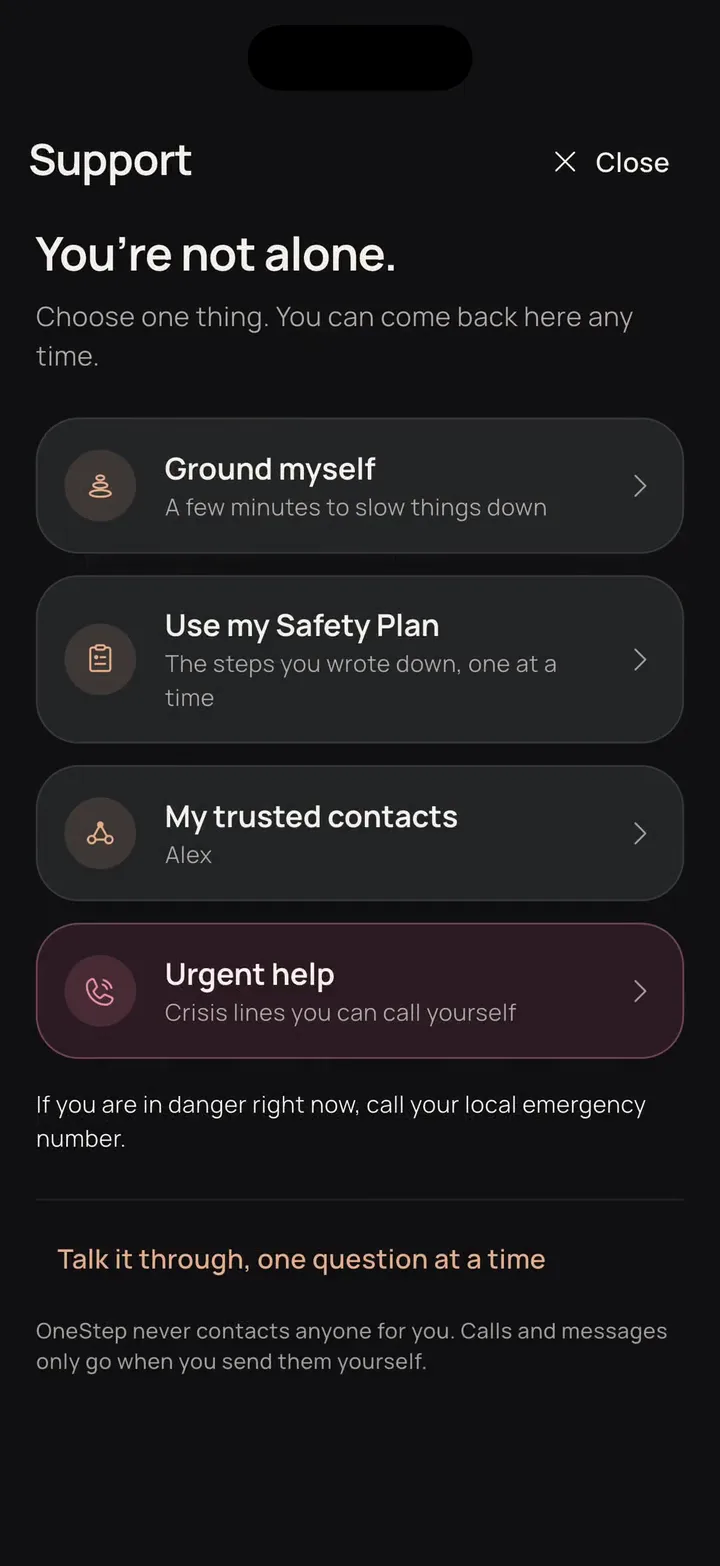
A round button opens grounding, your safety plan, your trusted contacts and urgent help.

OneStep never contacts anyone for you. If you choose, a trusted contact can see a little.

Continue toSupport

3 / 4 When you need a next step

Your safety plan

Your own next steps, ready before you need them.

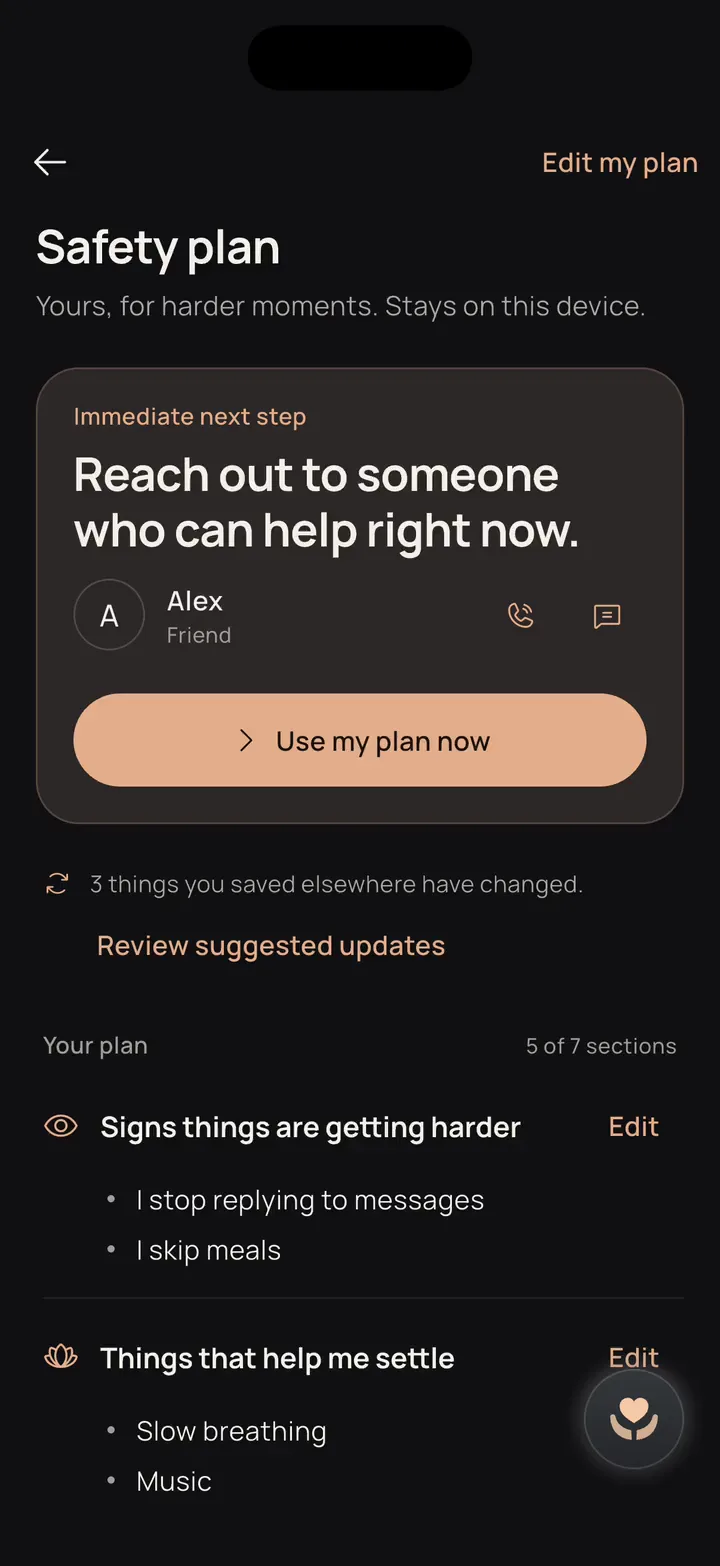
Seven parts written on a calmer day, in your own words. “Use my plan now” takes you through it one step at a time.

Urgent numbers stay within reach.

Continue toSafety plan

4 / 4 Any time

Tools and Care Kit

Something small to do in a heavy moment.

Short, silent exercises and My Reset. Keep what helps in Care Kit, where you can pin and order it.

You can try a short exercise further down this page.

Continue toTools
OneStep's check-in: How are you feeling?, with Okay chosen. Support, opened from the round button: Ground myself, Use my Safety Plan, My trusted contacts and Urgent help. A saved safety plan: one immediate next step, with Use my plan now beneath it. Care Kit: pinned exercises, a saved reset and saved steps, with Edit at the top.
Recorded from a pre-release build, with sample data.

Every day

Check in with yourself in about a minute.

Four short questions, then Home shows your day back to you, plainly.

Afterwards, Home offers one small step. Swap it, make it easier or write your own. It only changes when you choose.

Sample answers from a demo profile, recorded from a pre-release build (English at launch). Choosing a step plays that part of the recording; this page never asks for or saves your answers.

When it gets harder

Help is one tap away.

A round button sits on every main screen. One tap opens grounding, your safety plan, your people and help lines.

  • On every main screen

    The same round button, a heart held in open hands, always in the same place.

  • Four ways in

    Ground myself, your safety plan, your trusted contacts and urgent help.

  • You decide

    OneStep never contacts anyone for you. Calls and messages open in your phone's own apps.

If you choose, someone you trust can also see a short, limited view. How trusted contacts work

About the help-line numbers

The app includes help-line numbers for several countries and says plainly that they have not yet been independently checked.

When you need a next step

Your safety plan, ready when you need it.

You build it one question at a time, from choices or in your own words.

A saved plan

It opens on one immediate next step, with “Use my plan now” beneath it. Choose a part to see it in the sample plan.

A sample plan from a demo profile, recorded from a pre-release build (English at launch). Nothing here is saved.

If you choose, a trusted contact can see two parts of your plan. How trusted contacts work

Trusted contacts · optional

Someone you trust, seeing only what you choose.

An optional connection for someone close. You invite them, they decide whether to accept, and they see a short, separate view of only the things you switch on.

In developmentThe phones below are recordings of the real app, verified end to end against a local test copy of the OneStep service. It isn't on a hosted service yet and hasn't been released. Each phone says what it shows.

Not finished yet: a hosted service, invitation links that open from a web address (for now, the code always works), and asking a contact for support, which needs push notifications.

Who invites whom

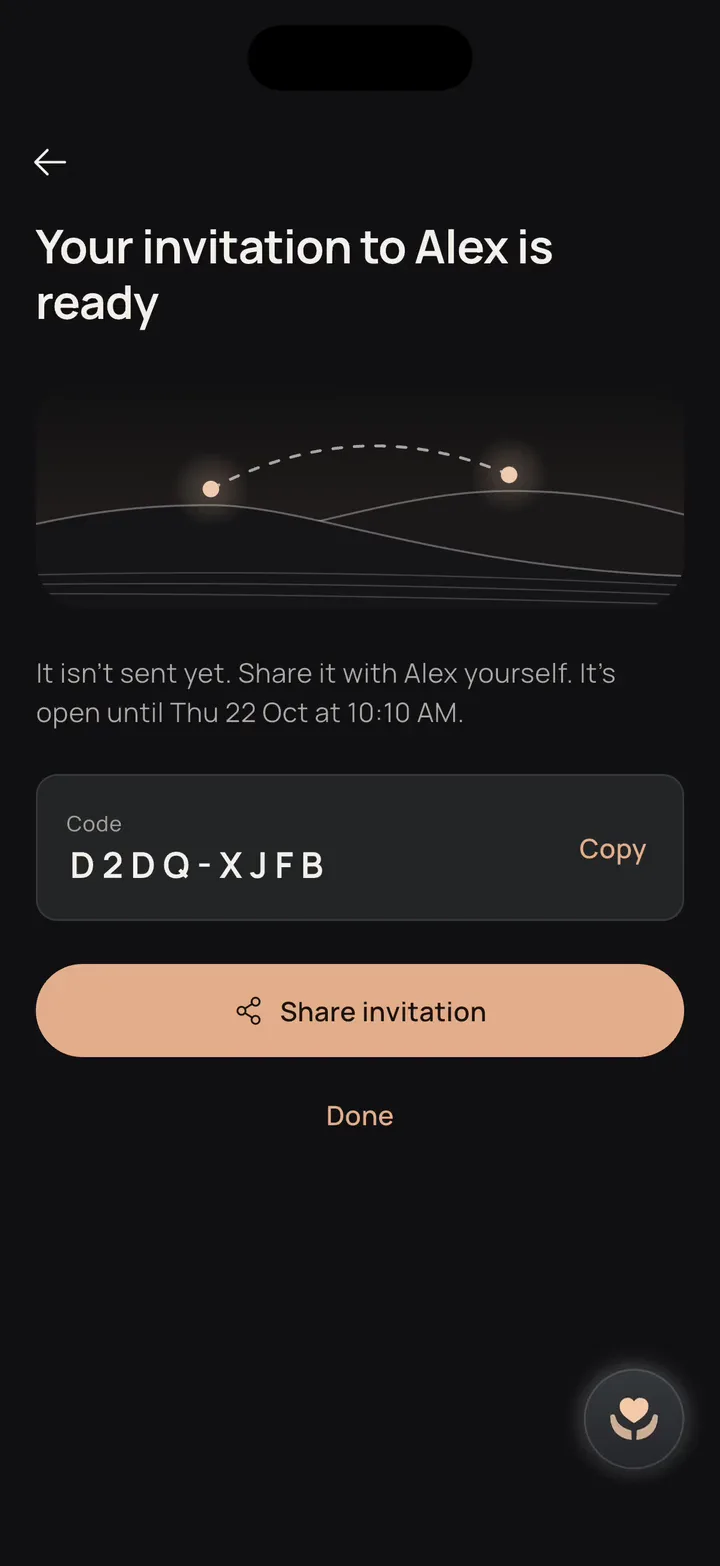
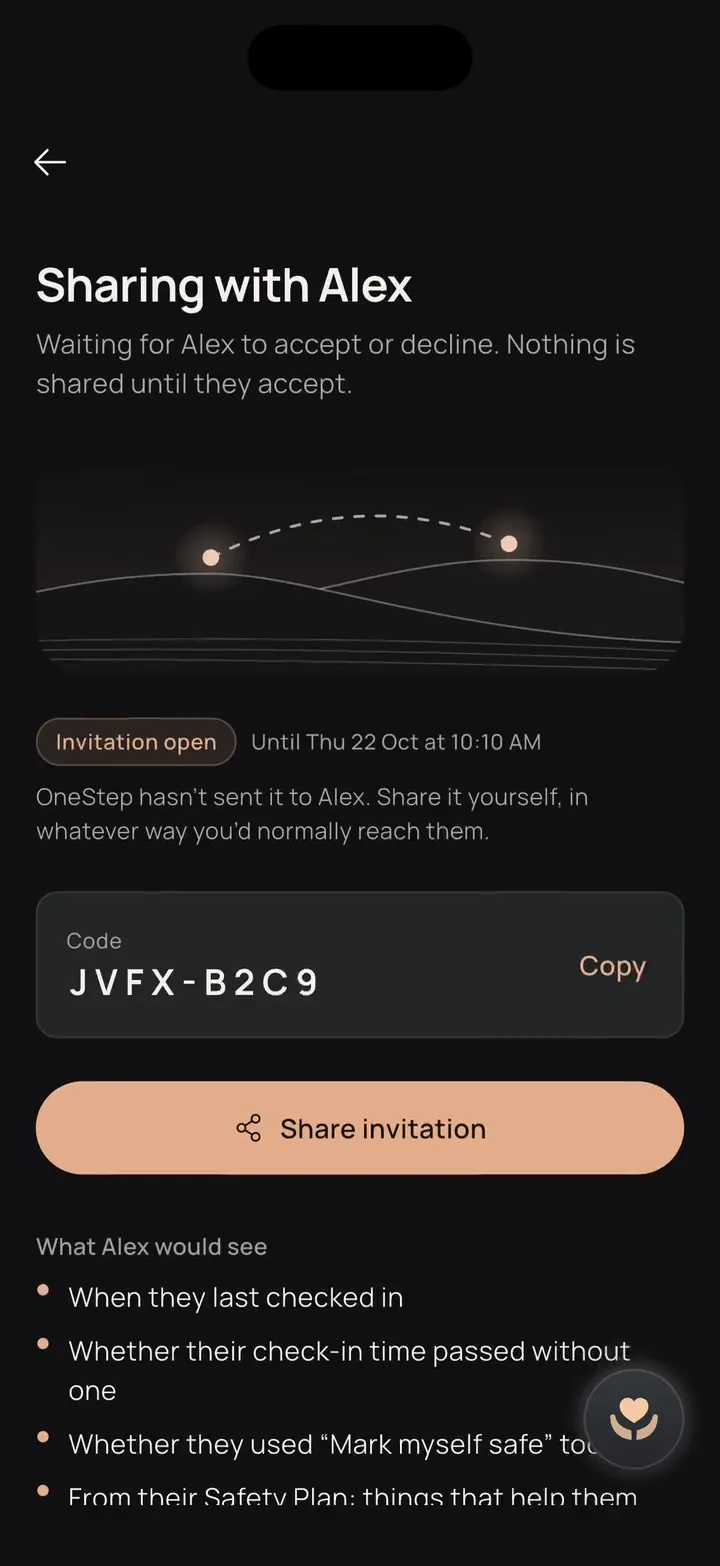
You invite them, from your OneStep account. OneStep makes an eight-character code that works once and expires after 72 hours; making a new one stops the old one. You share it yourself. OneStep sends nothing.

Why choose it

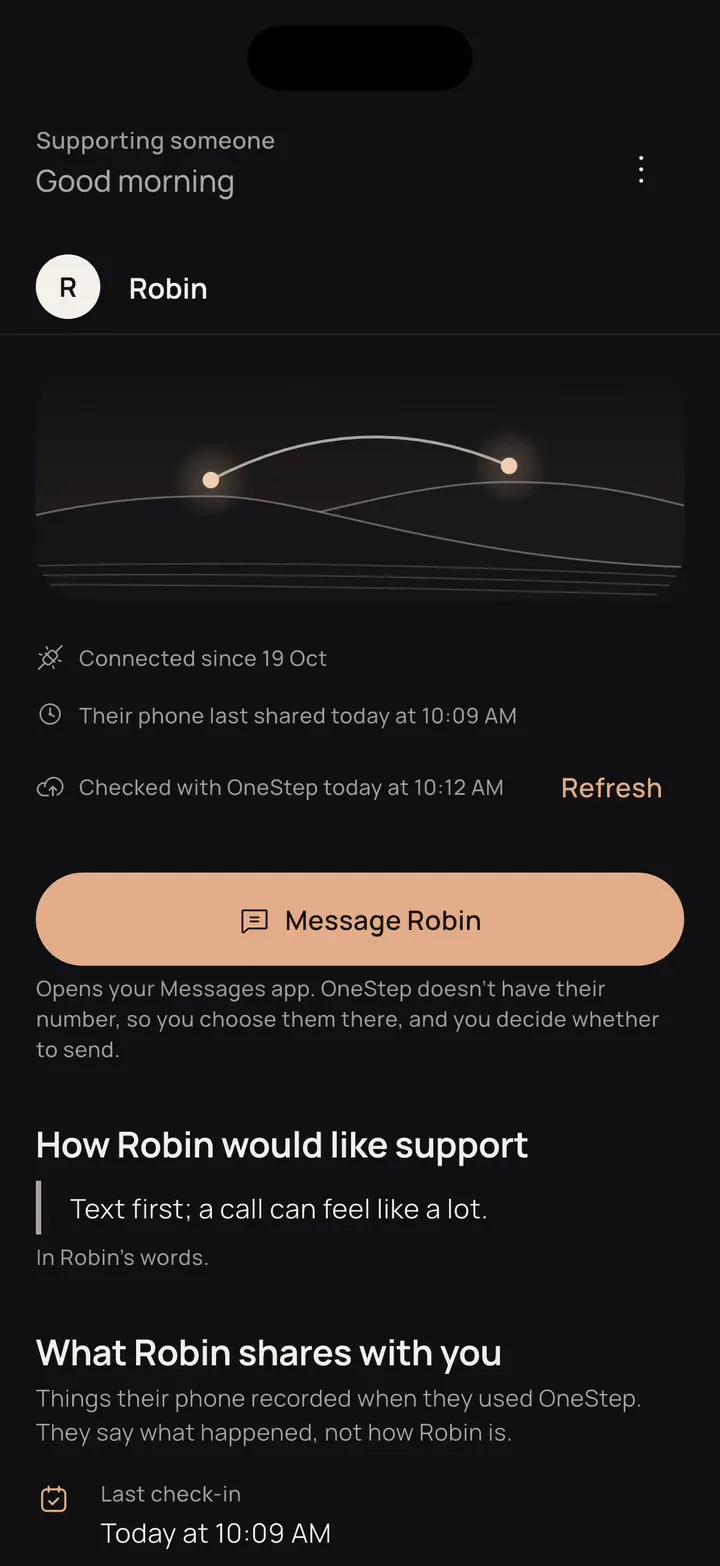
So someone close can see a few plain facts, like whether you've checked in, without you writing them out each day.

What they do

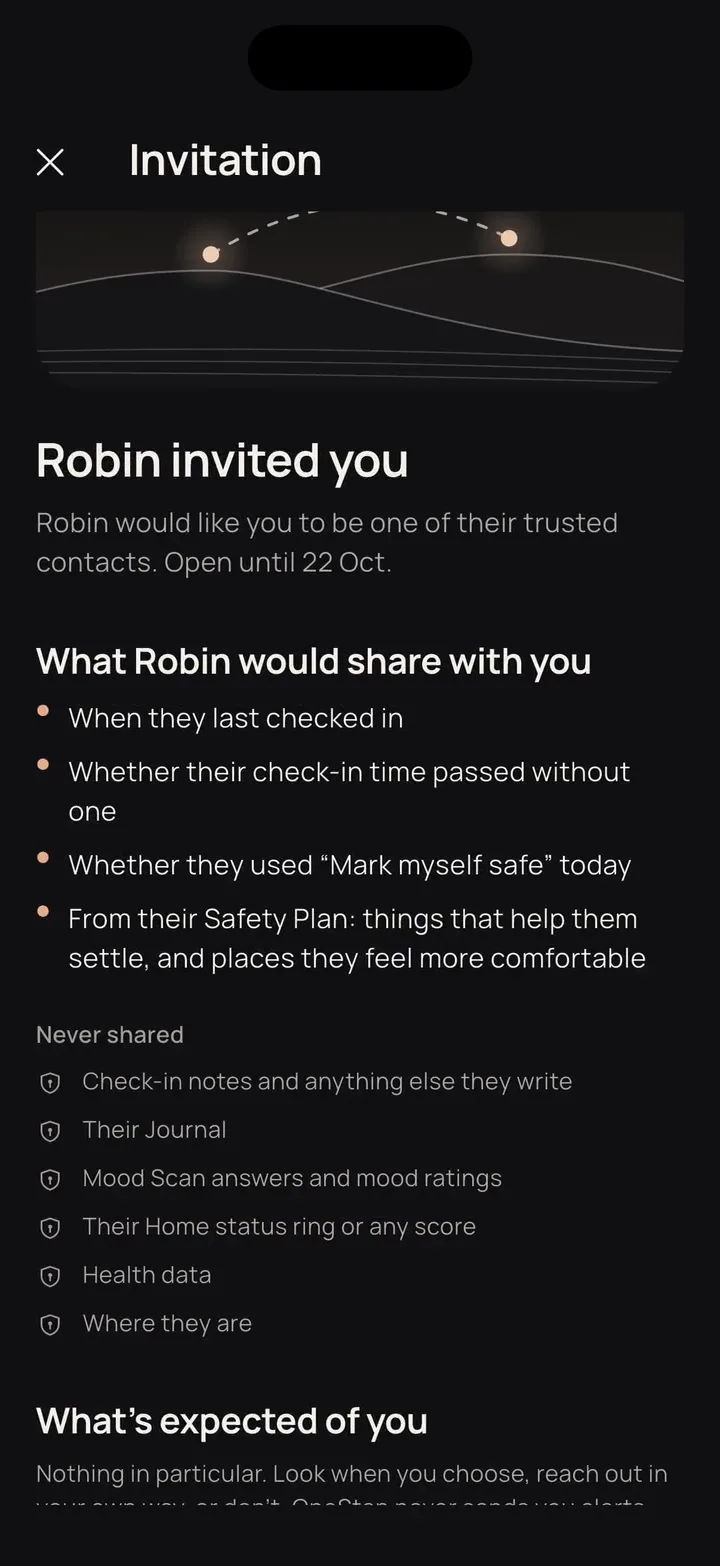
With their own OneStep account, they see who invited them and exactly what they'd see, then accept or decline. After that, they look when they choose. A forgotten password can be reset by email.

What can be shared

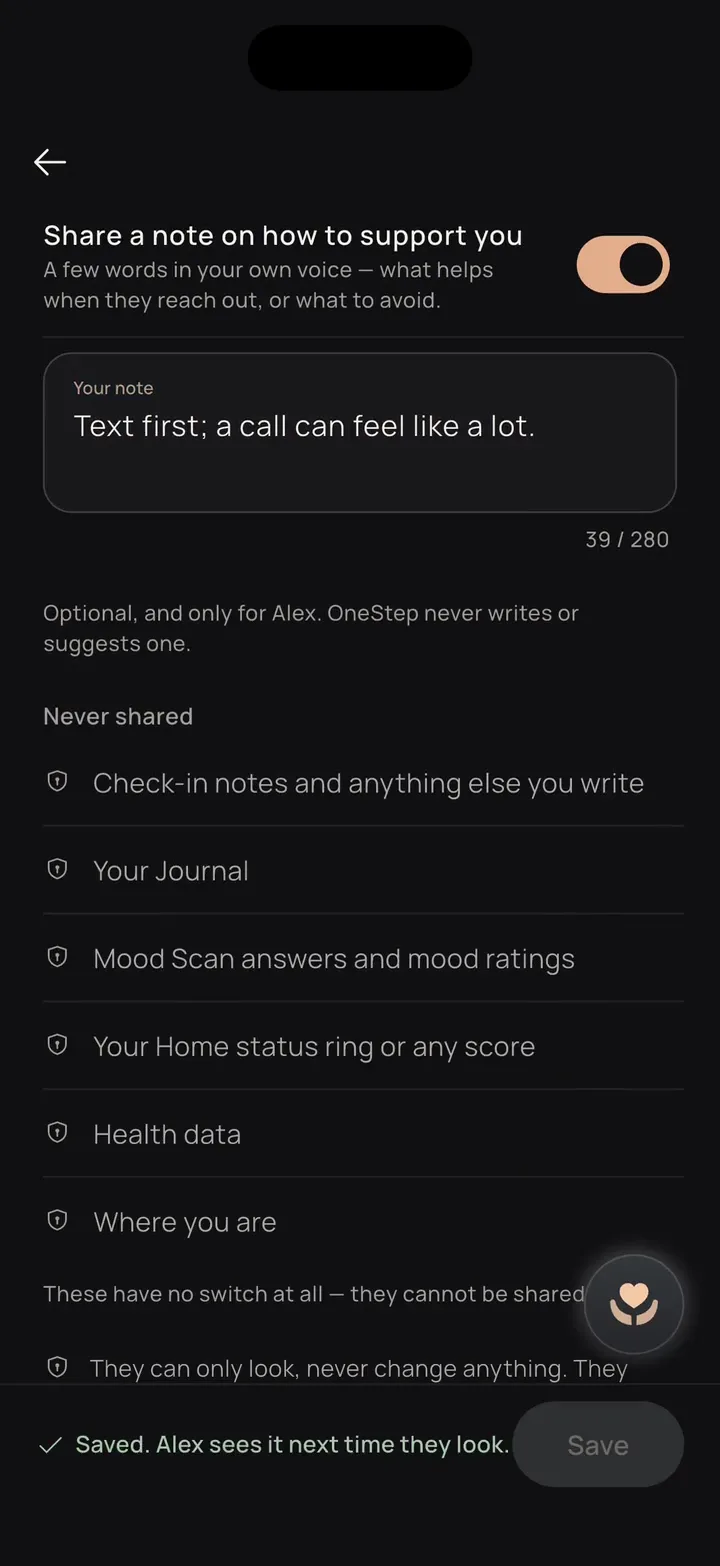
Only what you switch on, and every switch starts off. Never your notes, Journal, answers, scores, Health data or location.

How it ends

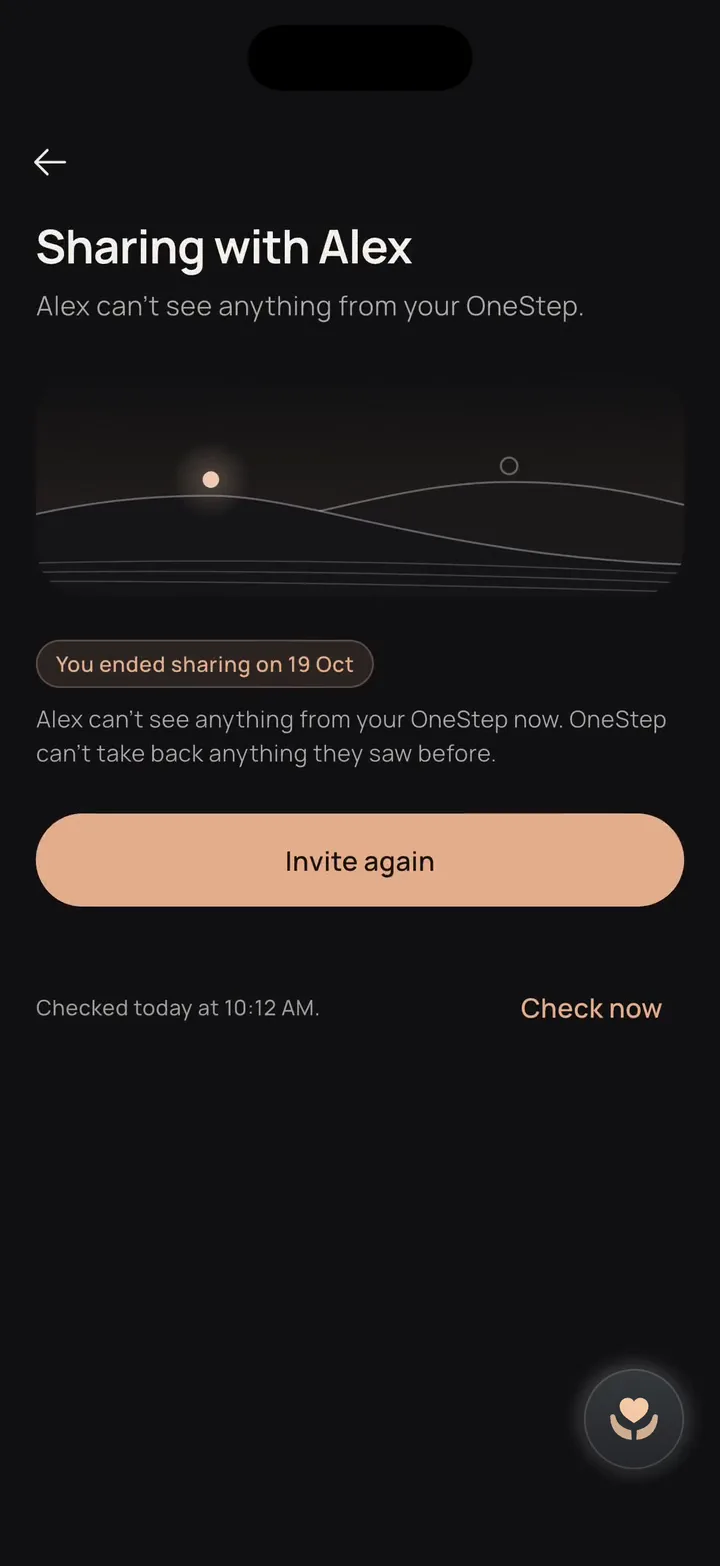
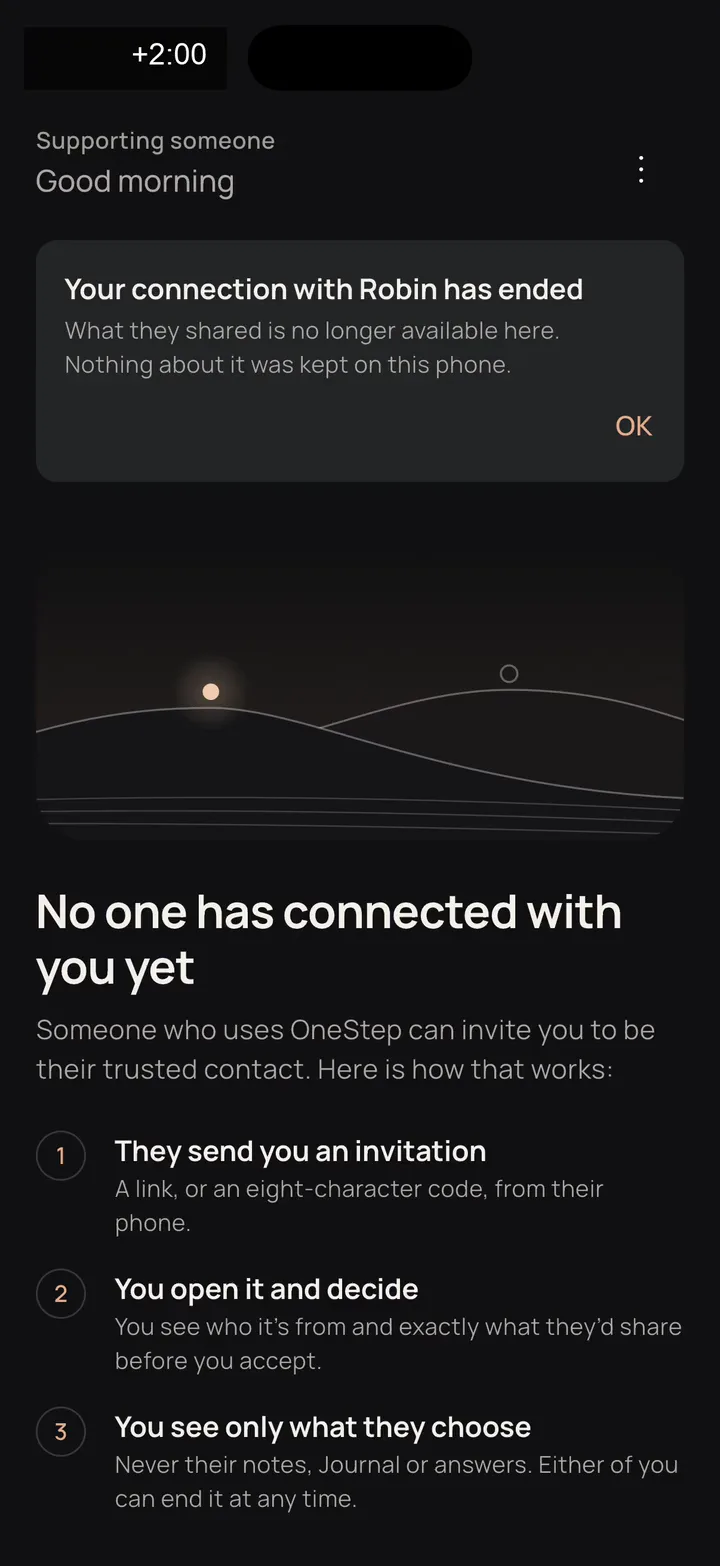
Either of you can end it at any time: you with End sharing, they with Leave. Their view shows nothing more from its next check with the service. Neither of you can take back what was already seen.

What it isn't

Not monitoring and not an emergency service. No one is alerted when you struggle, and they aren't expected to watch or reply.

How it works, from both sides

Robin · uses OneStepFrom Alex's card in Trusted contacts (typed in: OneStep doesn't read the address book), Robin reads what the role means, switches on what Alex would see and reviews it. Create invitation makes an eight-character code, open for 72 hours. Nothing is sent: Robin shares it, in any app.

Alex · Robin's trusted contactNothing reaches Alex from OneStep. Alex hears about it only if Robin shares the code or link.

Robin's phone Uses OneStep Recording · real app, local test service
Alex's phone The trusted contact Drawing · nothing arrives to record

Robin and Alex are made up. The recordings are the real app (version 4042386) on a test phone, connected to a local test copy of the OneStep service on a developer's computer, with made-up accounts deleted afterwards — not a hosted service. One phone played both people, switching accounts between takes. In stage 4, Alex's view comes from a second connection between the same accounts, ended by Robin's account through the same step as End sharing. Nothing on this page sends an invitation or asks for anyone's details.

What stays private, and what you can choose to share

Everything starts off, and nothing is shared until someone accepts. Try the switches to see what Alex's view would show.

Never shared, with anyone

  • Check-in notes and anything else you write
  • Your Journal
  • Mood Scan answers and mood ratings
  • Your Home status ring or any score
  • Health data and medications
  • Where you are
  • Guided reflection and message drafts

You can choosePractice only

These switches only change the picture on this page. They're not connected to any app or account, and nothing is saved.

Alex's view would show

Nothing yet. With every switch off, Alex's view has nothing from Robin.

Illustration with made-up values.

In the app, these switches are under Trusted contacts, for each person. Changing them later isn't announced to the other person. Where this is stored: the privacy note

Any time

Small tools for a heavy moment.

Short, silent exercises, most of them a few minutes long. Choose one to see how it looks in the app.

1 / 8 About 3 min

Settle for a moment

A little grounding and a slower breath. About 3 minutes.

Try a small moment

Try one here, in about a minute.

A short website demonstration of two exercises from the app. It starts only when you choose, you can stop at any point, and nothing you do here is saved.

This demonstration needs JavaScript. The exercises themselves are in the app.

Choose one

Website demonstration

This is not treatment and isn't meant to change how you feel. Nothing here is recorded, saved or sent, and it needs no microphone, camera or account.

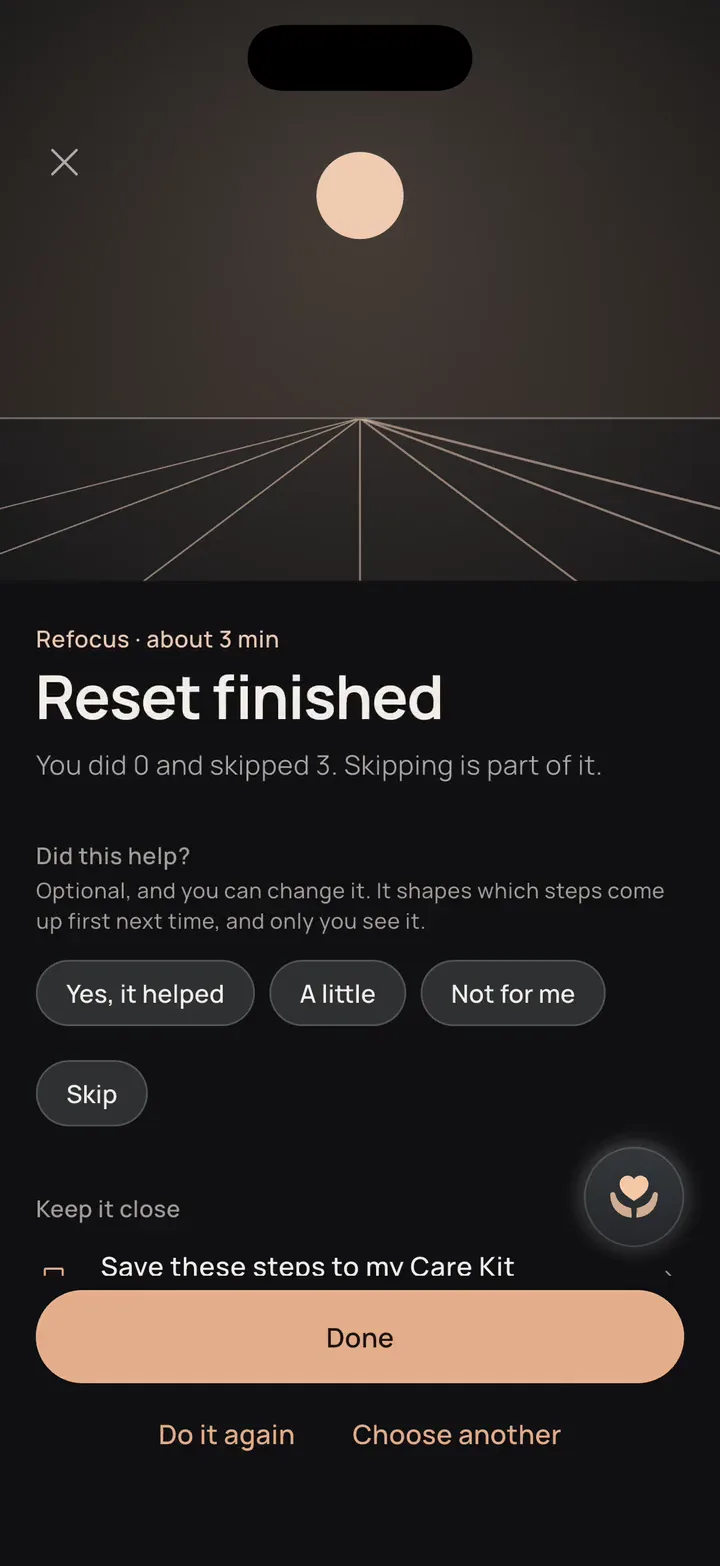
Recorded example Refocus · 3 min, the app's suggestion that day

My Reset

My Reset: a short pause, your way.

Pick what would help and how long you have. The app then puts together two or three small things, one at a time.

What would help

How long

In the app, this builds

Refocus · 3 min: three steps, about two to three minutes in all

Clear a little space, then pick what is next.

    The app picks one thing for each step, rotates them so a reset isn't the same every time, puts first what you said helped, and leaves out kinds of suggestion you chose to leave out. Each step takes its own time, and the app shows the plan's own estimate rather than the length you picked. You can skip a step, or swap it for another.

    Leave a reset part-way and Home offers, once, to pick it up again. It never opens by itself.

    Preview

    A demonstration with sample data. The exercise itself runs in the OneStep app; nothing here is saved.

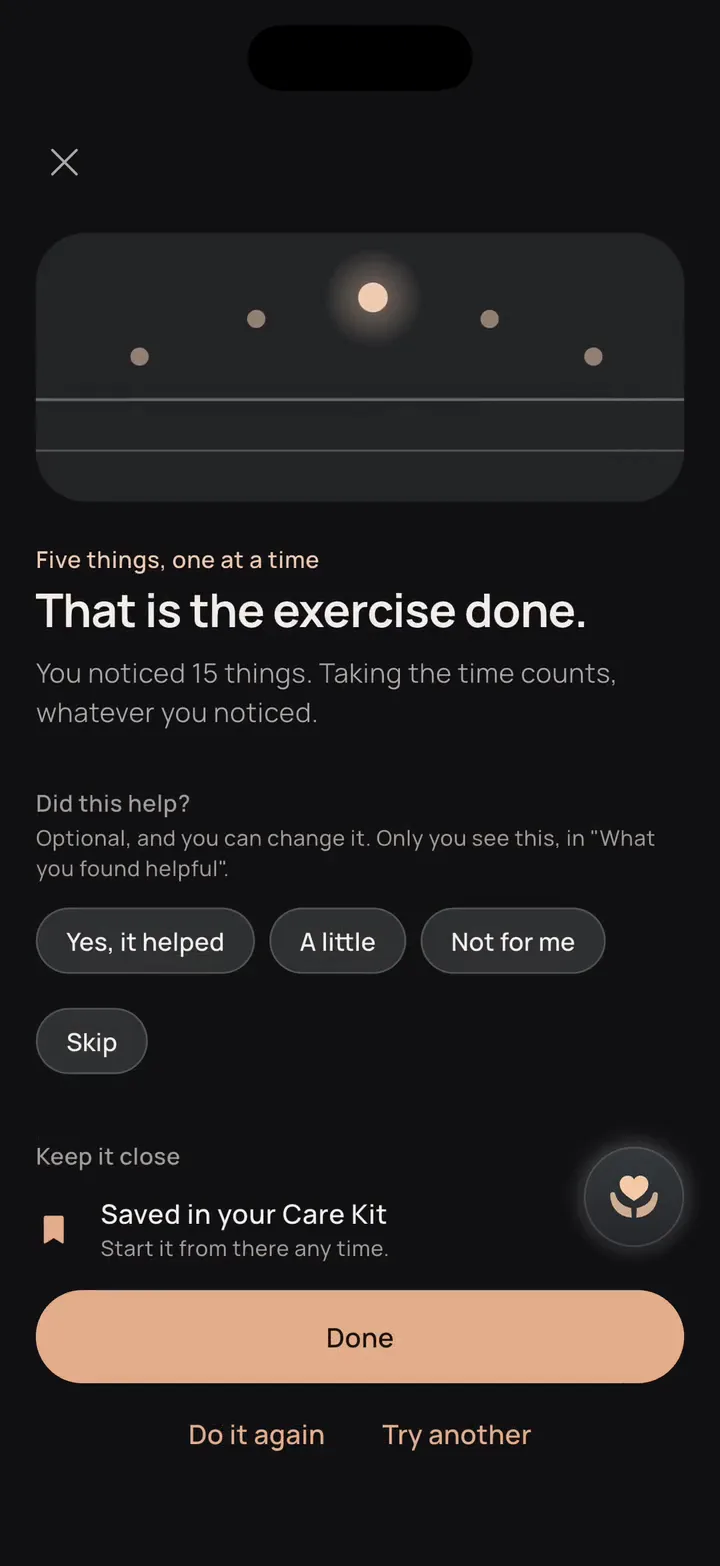
    5-4-3-2-1 grounding

    Come back to where you are.

    Notice what is around you, one sense at a time. Each thing you notice lights a point on the horizon.

    Exercises are silent and go at your pace.

    Grounding: five things you can see

    Care Kit

    Keep what helps close.

    Care Kit holds what you've found useful, so it's close next time. Pin what matters most and arrange the rest; removing something can be undone.

    • Exercises you kept

      Start one again with a tap.

    • Resets you built

      With roughly how long each takes, and its steps in order.

    • Small tasks you saved

      One tap makes a saved task today's step.

    • Notes to yourself

      Reminders, in your own words.

    Over the weeks

    See your days clearly, without a score.

    Journal
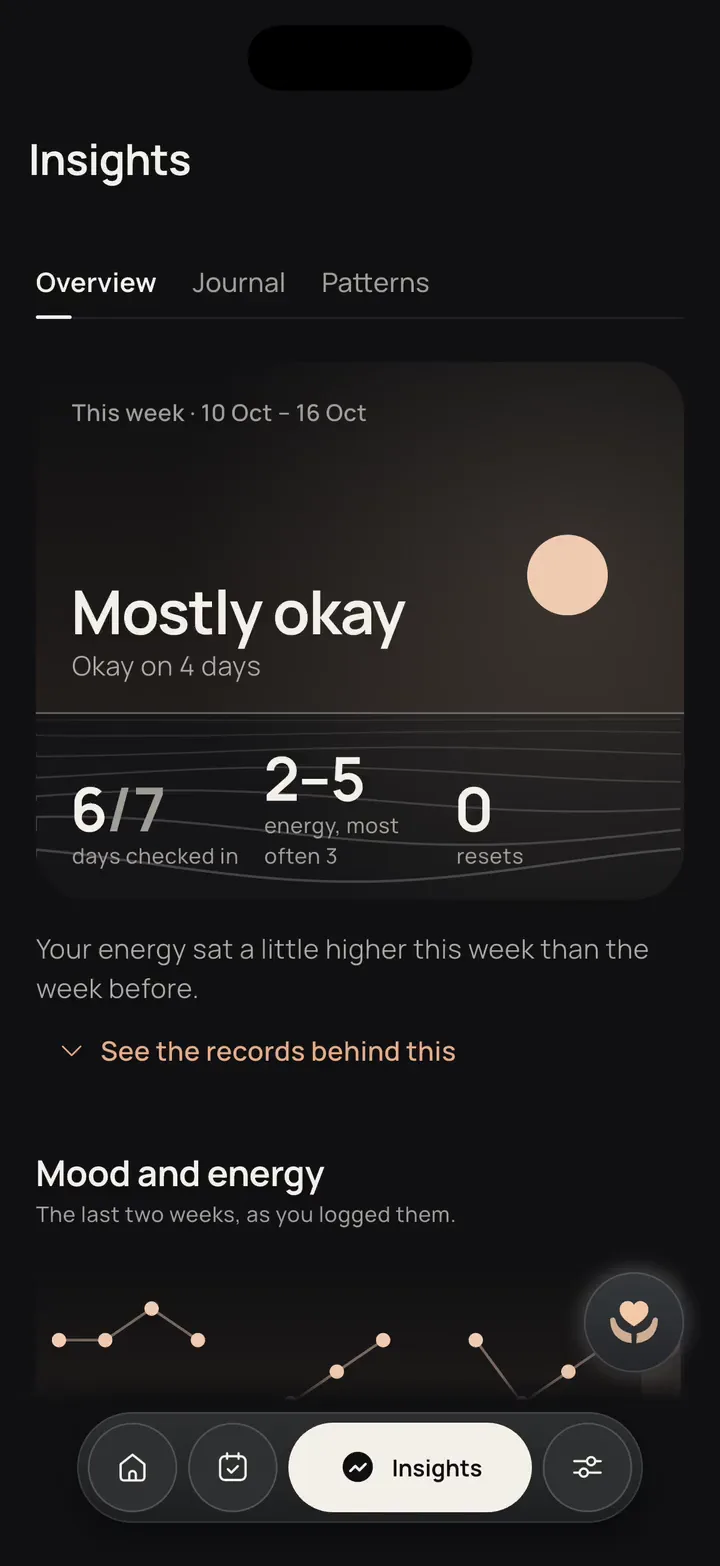
    Your days, kept in order.
    Weekly review
    What you logged, with no score and no grade.
    Personal patterns
    Off until you turn them on. They compare your own days and describe what they see, never a cause.
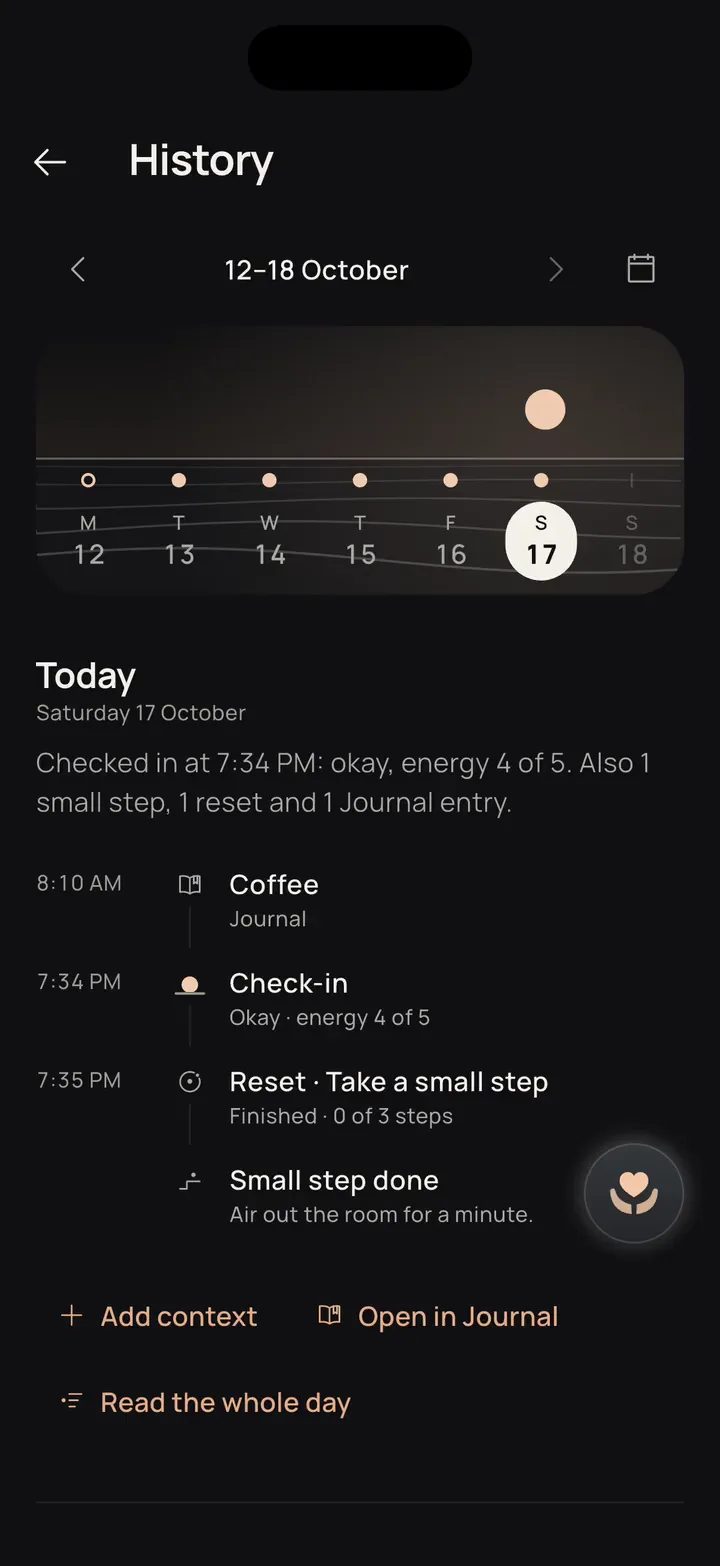
    History
    Open any day as it was recorded.
    Apple Health

    On iPhone you can choose to connect Apple Health for sleep, steps and heart figures. That data stays on the phone.

    Make it yours

    Three quiet colourways. Preview, then choose.

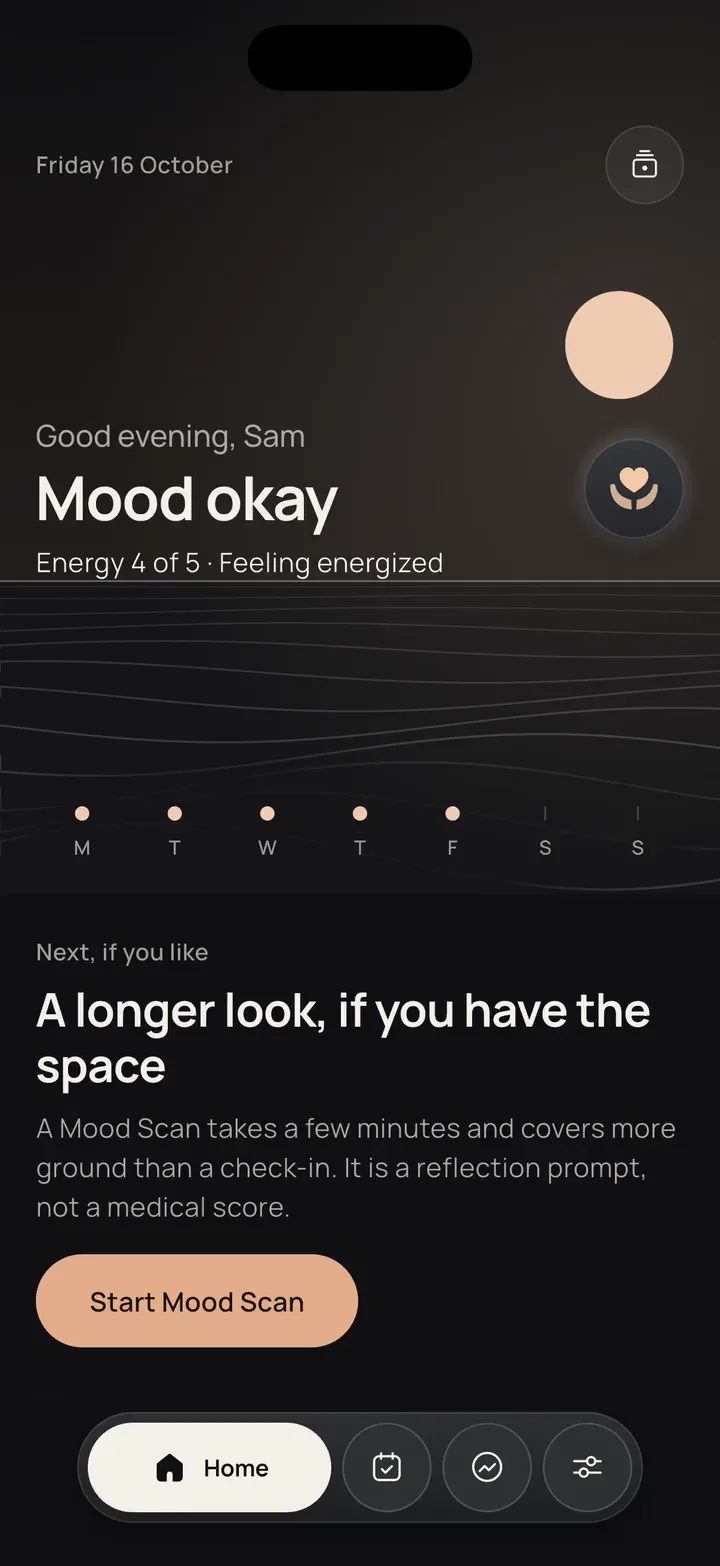
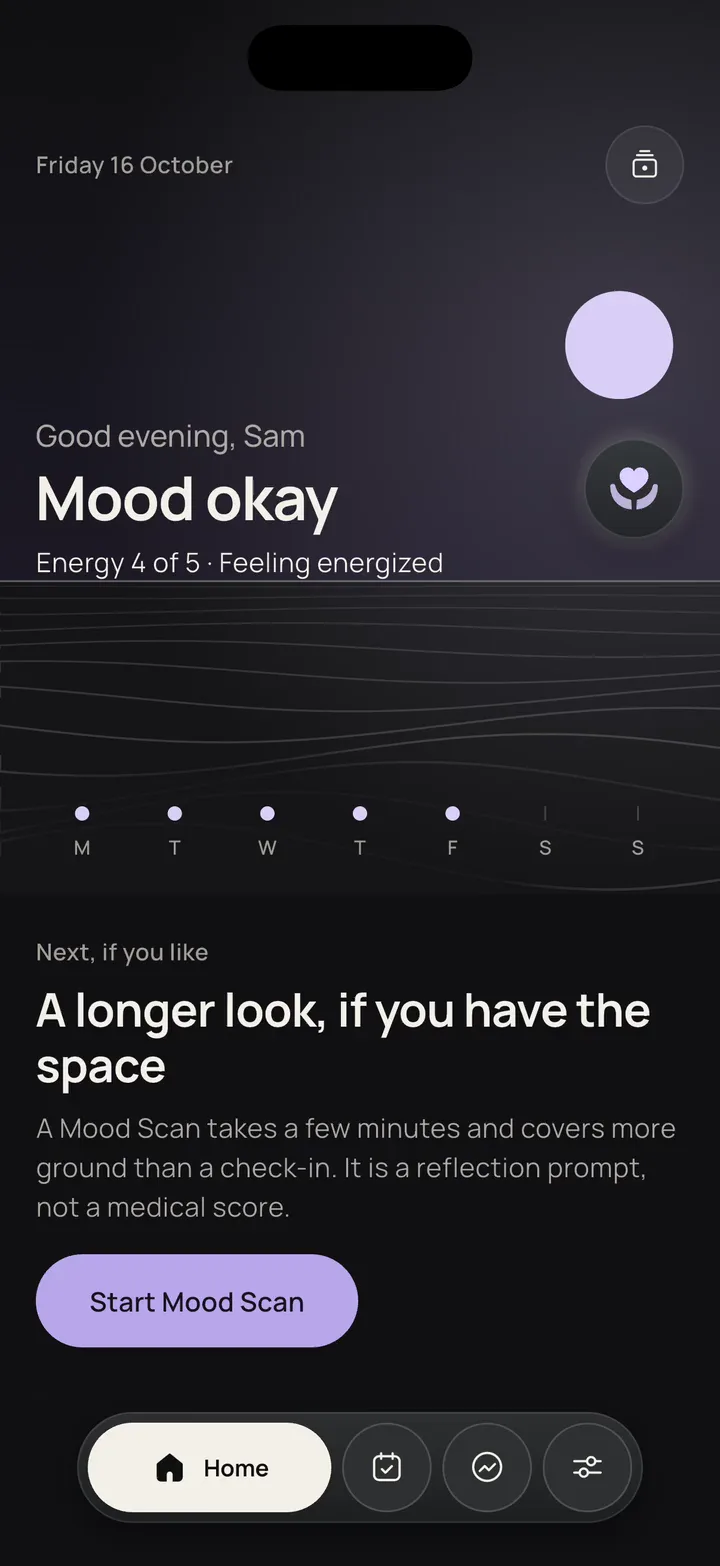
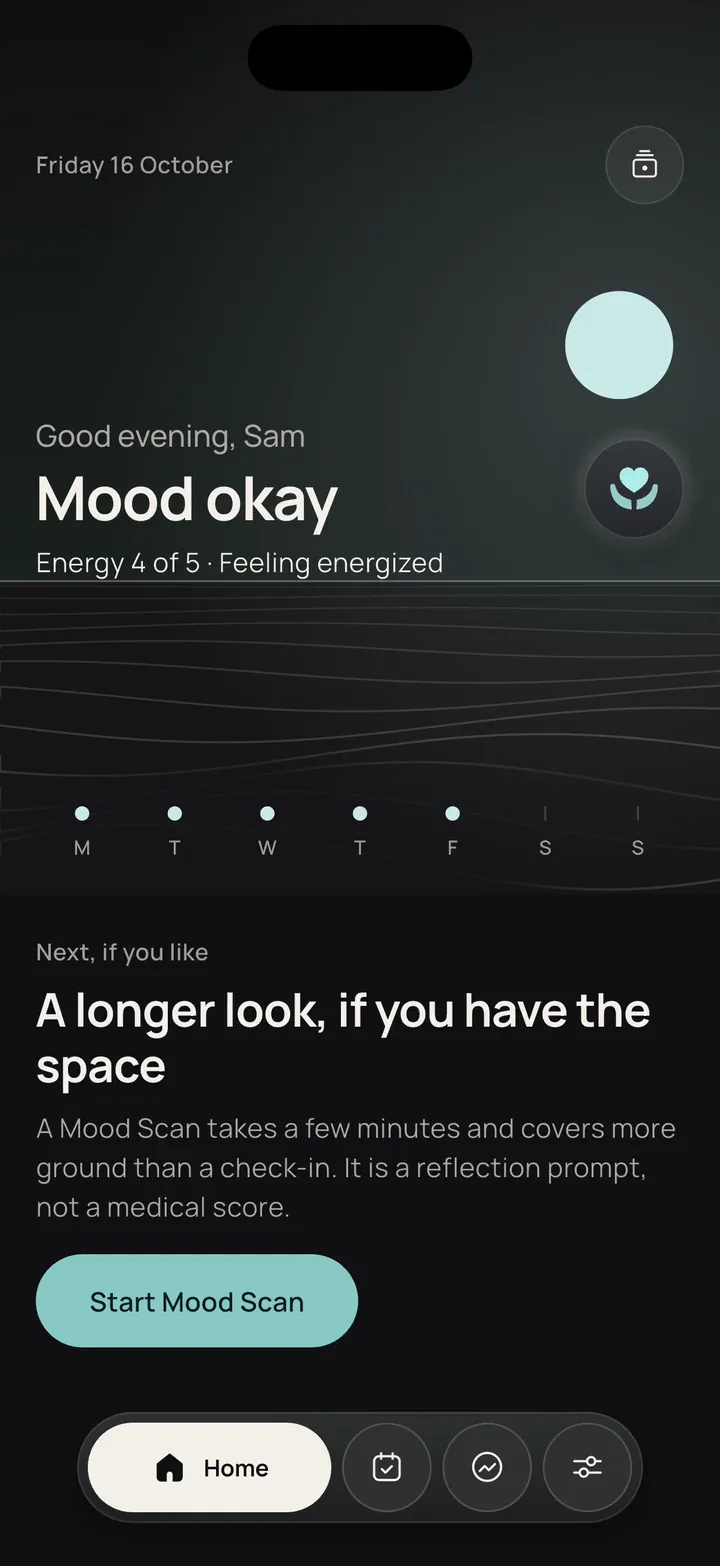
    In Settings → Appearance each theme is shown as a small model of the app. Tapping one only previews it; nothing changes until you choose “Use …”.

    A theme changes buttons and highlights, the light in every scene and the support button's symbol. Support, warnings and completed things keep their own colours.

    An app appearance preview, recorded from a pre-release build with sample data. Choosing a theme here only changes this preview; it doesn't change anything on your phone. On iPhone, OneStep's home-screen icon changes to match after a short confirmation from iOS, which the Lavender and Ocean recordings show before Home.

    Your data

    What you write, and where it's kept.

    OneStep keeps what you record on your phone first. An account is optional: it copies some of it so you can restore it, and never your Journal, medications or Health figures.

    On your phone

    Everything you choose to record

    Choose anything you record to see exactly where it's kept.

    1. Look back

      History, Journal and Insights show what you logged, day by day, with no score.

    2. Take a copy

      Export, in Settings, makes a complete file of your data and a summary you can read.

    3. Delete

      Reset app data clears this phone. With an account, Delete cloud copy removes what was copied; the sign-in itself stays.

    On this website

    The demonstrations here keep nothing.

    • Try a small moment, Make it yours and the step-by-step previews save nothing and send nothing.
    • Your language and Motion choices are remembered in your own browser, and never sent to us.
    • While the waitlist is closed there is no form. No cookies of our own, no analytics. Like any website, the service that delivers these pages processes standard technical details of each request.
    Read the privacy note, including hosting

    What OneStep is not.

    It is not therapy and doesn't replace professional help. It doesn't diagnose anything, and there is no AI in it. Scores in the app are prompts for reflection, not medical scores. Contact-alert screens are previews: nothing is ever sent.

    If you are in immediate danger, call your local emergency number now: 112 in Türkiye and across the EU, 911 in the US and Canada, 999 in the UK.

    Questions, answered plainly.

    Do I need an account?

    No. OneStep works on your phone without one. An account is optional: it keeps a copy of some of your information so you can restore it. Your Journal, medications and Apple Health data are never copied to an account.

    Does it work without internet?

    Yes. What you write is saved on your phone first, so check-ins, your safety plan and the tools work offline. If you use an account, copies are sent when you're back online.

    Does it use Apple Health?

    Only if you connect it. OneStep then reads seven signals: heart rate, resting heart rate, heart rate variability, respiratory rate, sleep, steps and active energy. It only reads them, never writes, and the figures stay on your phone.

    Can it remind me to take medication?

    Yes, if you turn reminders on. You can be reminded of each dose and told when a supply is running low. By default the notification doesn't name the medication. Reminders are scheduled on your phone; nothing is sent from a server.

    Can it remind me to check in?

    Yes, if you switch reminders on. You set a check-in time, and can give some weekdays a time of their own; reminders follow that schedule. Quiet hours are respected, and a day you have already checked in is skipped. Reminders are scheduled on your phone, never sent from a server.

    Can I change what it suggests?

    Yes. In Support preferences you can leave out things like long text, generic advice or too much positivity, and OneStep stops suggesting them. They stay one tap away in Tools and Care Kit, and Support, your safety plan and urgent help are never affected.

    Can someone else see how I'm doing?

    Only someone you invite, once they accept, and only what you switch on: for example when you last checked in, or a short note you write for them. Every switch starts off, and either of you can end it at any time. Both of you need an account. The feature is still in development: it has been verified against a local test copy of the service, not yet a hosted one. Notes, Journal, Mood Scan answers, scores, Health data and where you are are never shared.

    Will my trusted contact be alerted if I'm struggling?

    No. OneStep doesn't alert anyone, and nothing is pushed to a contact's phone. A trusted contact sees what you've shared only when their view checks with the service, you aren't told when they look, and the alert screens in the app are previews that send nothing. It isn't a monitoring or emergency service.

    Will OneStep contact anyone for me?

    No. It never sends a message or makes a call on your behalf. Call and message buttons open your phone's own apps with the details filled in, and you decide whether to send.

    When can I get it?

    It's coming to iPhone first, in English. There's no release date yet; when the waitlist opens, you'll be able to join it on this page.
    Whatever the day, one small step.

    A daily check-in, help one tap away, a safety plan in your own words, and small tools for a heavy moment. If you choose, someone you trust can see a little of it. Nothing is sent on your behalf.

    1. Every dayCheck in
    2. When it gets harderOne tap to Support
    3. When you need a next stepYour safety plan
    4. Any timeTools and Care Kit

    Optional, in developmentTrusted contacts: someone you trust sees only what you choose

    The waitlist opens soon.

    We aren't collecting email addresses yet. When the waitlist opens, you'll be able to join it here, and this page will say exactly what is stored and for how long.

    Screens on this page were recorded from a pre-release build with sample data, and may change before launch. Trusted contacts also uses drawings and the app's example with made-up people, because its connected service isn't running yet.